

How To Send A Secure Message or Documents
LAFPP Members now have the ability to send secure messages and upload documents or completed forms. Please follow the detailed steps below on how to send a message or submit documents.
Important: In order to access your information, you must first register to the MyLAFPP member portal. Please refer to the MyLAFPP Helpdesk on how to register and other helpful self-service “How-to’s.”
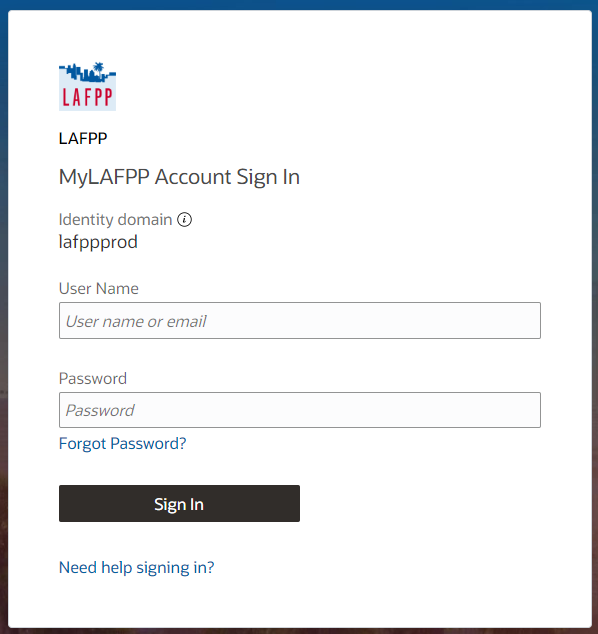
STEP 1: Log Into Your MyLAFPP Account.
A. Enter Your Username and Password, then click Sign In
Note: Logging in with an email address does not work at this time.
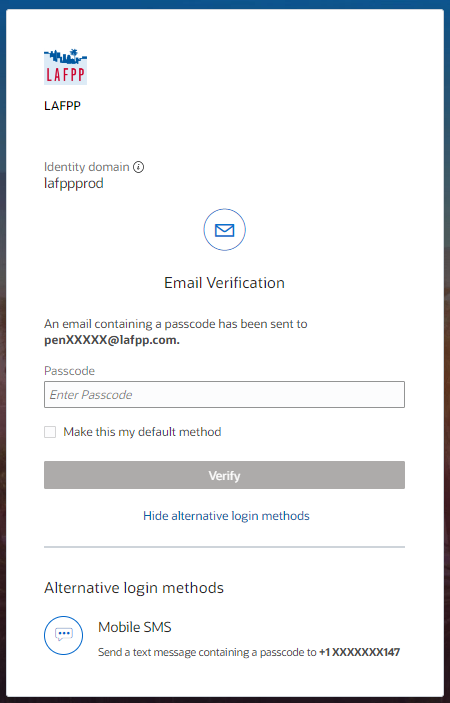
B. Verify Authentication
Note: A passcode will be sent to default verification method.
You may change methods by clicking the icons below alternative login methods, if available.
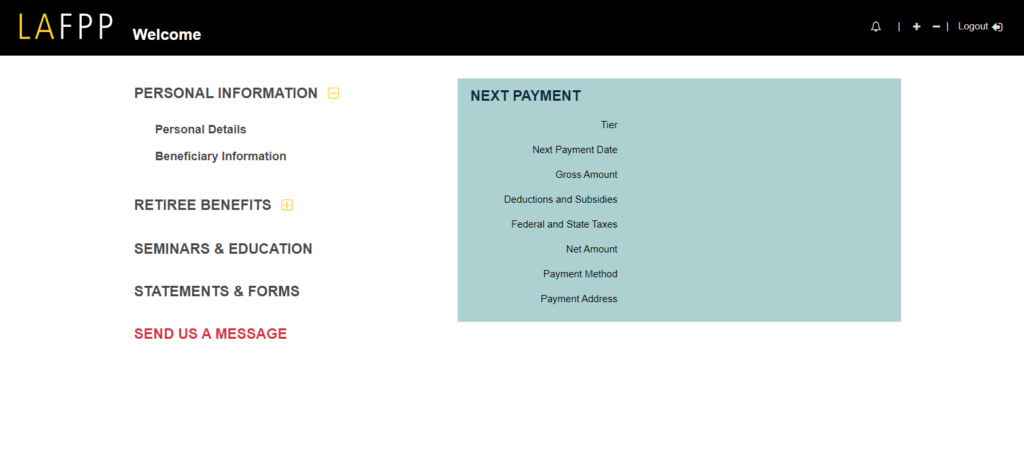
STEP 2: Click on “Send Us a Message”
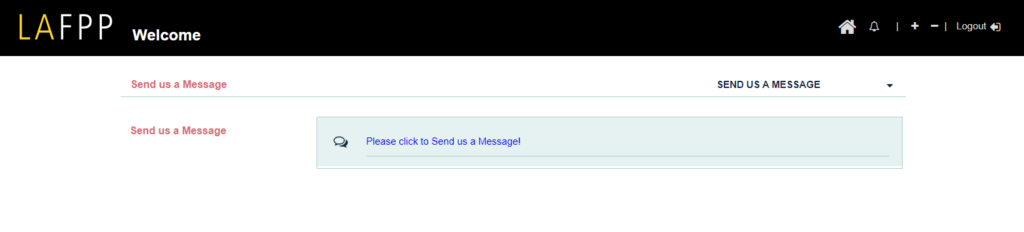
STEP 3: Click the blue link labeled “Please Click to Send Us a Message!”
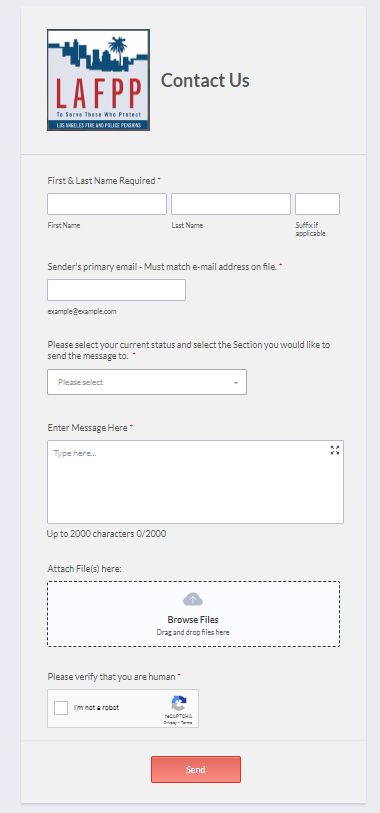
STEP 4: Fill out all the required information.
Note: Be sure to select the correct section based on your request.
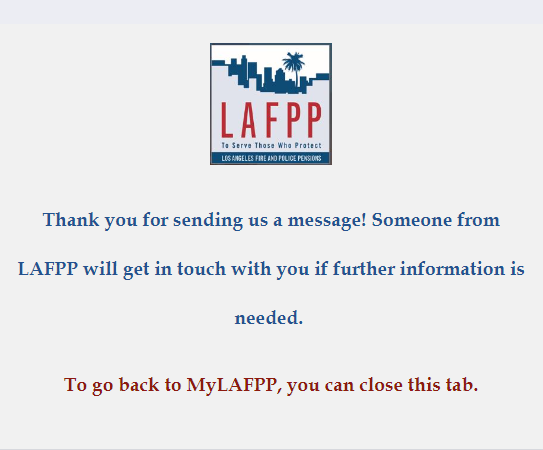
STEP 5: You will see a confirmation message that your submission has been successfully sent. You can now close the window to return to your account.
Contact Us
If you require further assistance please contact the Communications & Education Section at (213) 279-3155 or (844) 885-2377, Monday-Friday from 7:30 a.m. to 4:30 p.m. (PDT), excluding weekends and City Holidays.