

How to Update Beneficiary Designation
Learn how to update your beneficiaries online.
Important: In order to access your information, you must first register to the MyLAFPP member portal. Please refer to the MyLAFPP Helpdesk on how to register and other helpful self-service “How-to’s.”
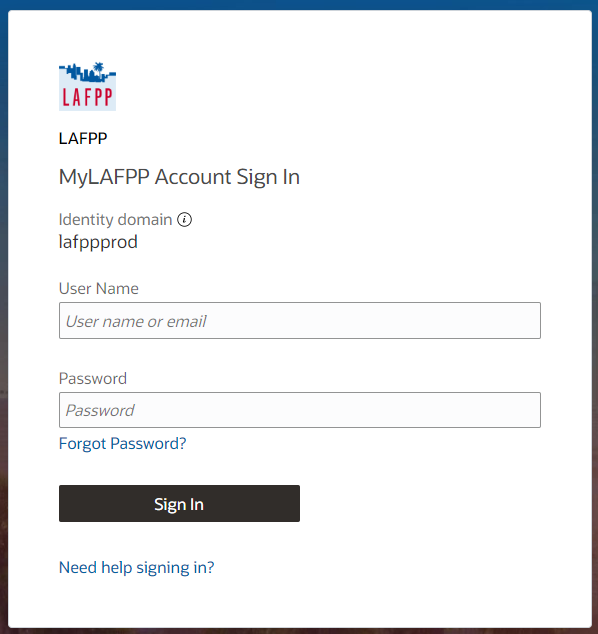
Enter your username and password, then click Log In.
Important: Passwords are case sensitive.
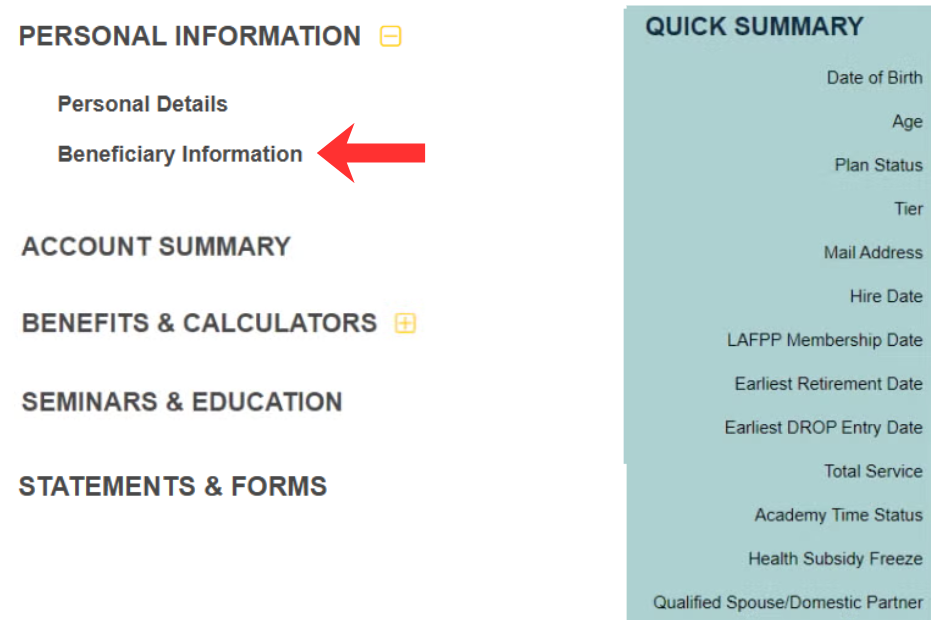
Click Beneficiary Information
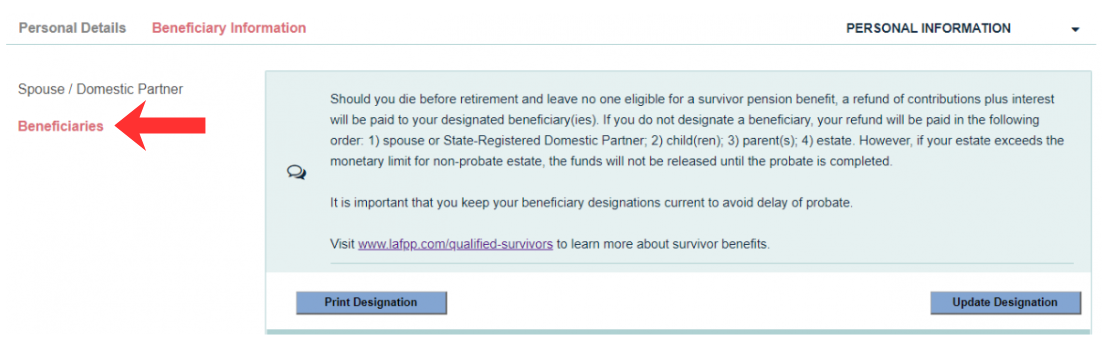
Click “Beneficiaries”
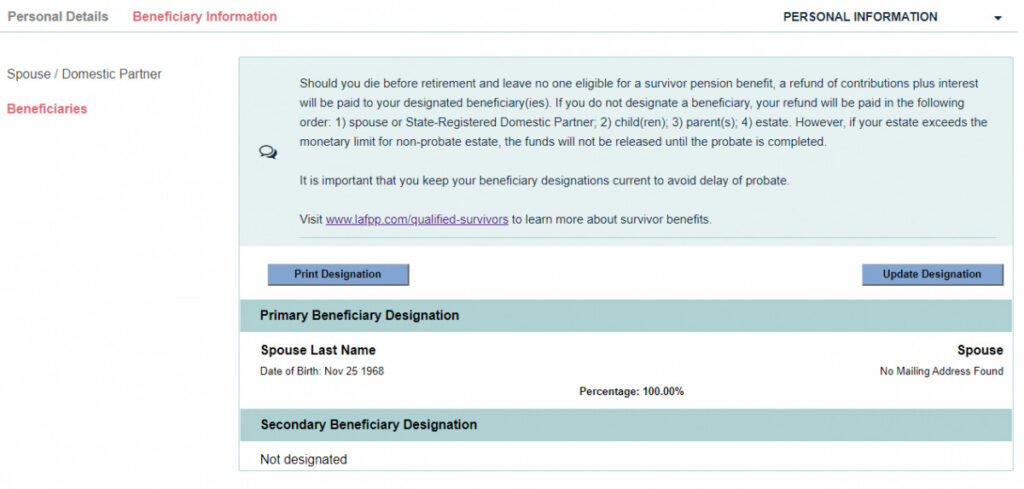
Review Your Elected Beneficiaries
Click “Update Designations” to make changes or “Print Designations” to print a copy.
Add or Update Your PRIMARY Designation
You will be asked to provide a SECONDARY (contingent) designation later. NOTE: You will not be able to designate the same individuals for Primary and Secondary.
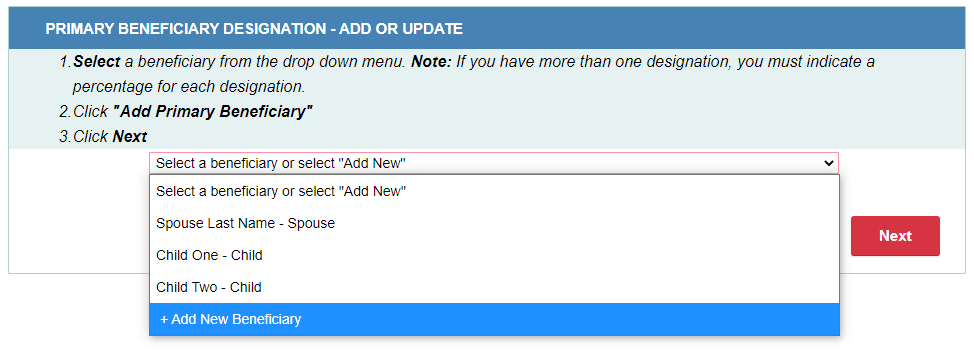
To add a NEW beneficiary:
- A. Select “Add New Beneficiary” from the drop down box.
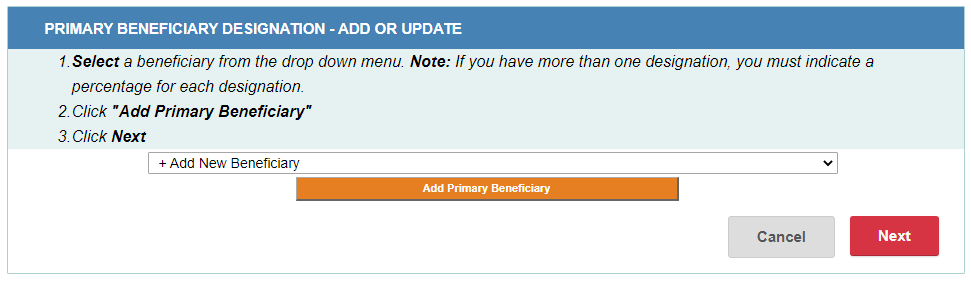
- B. Click “Add Primary Beneficiary”
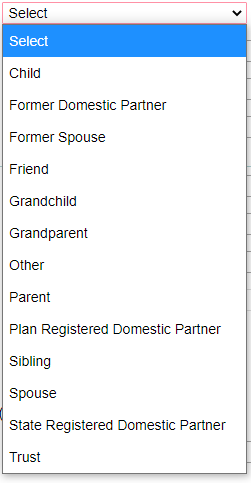
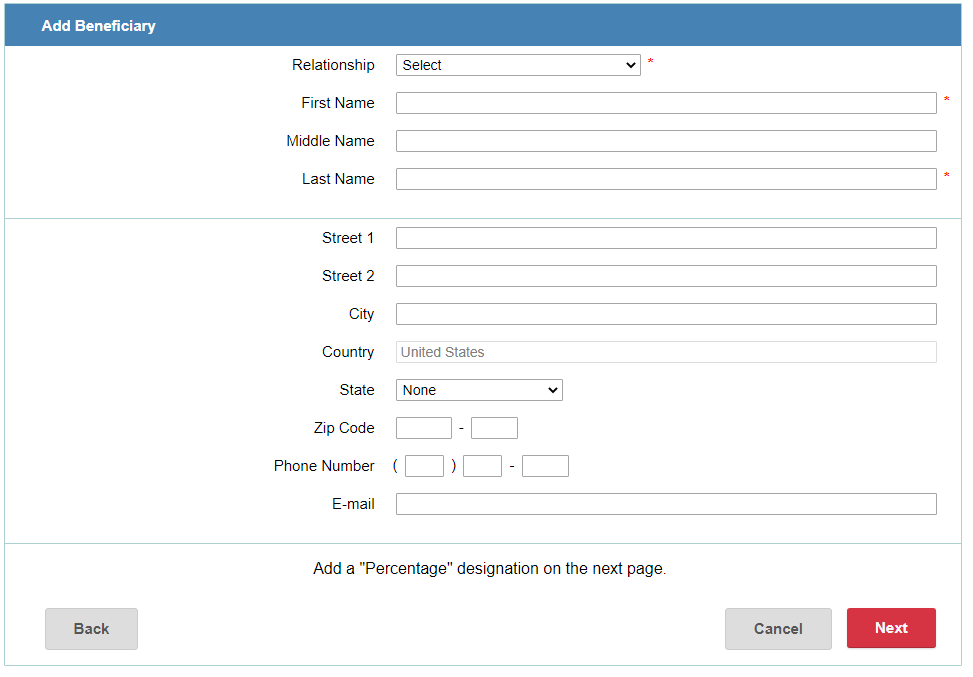
- C. Select the relationship type and fill in the required information in the boxes provided.
Click: How to Add a Trust
Click: How to Add a Spouse/Domestic Partner - D. Click Next. To add more than one PRIMARY designation, repeat steps A to C.
- E. Enter the percentage (in whole numbers) you would like to designate. Click Next.
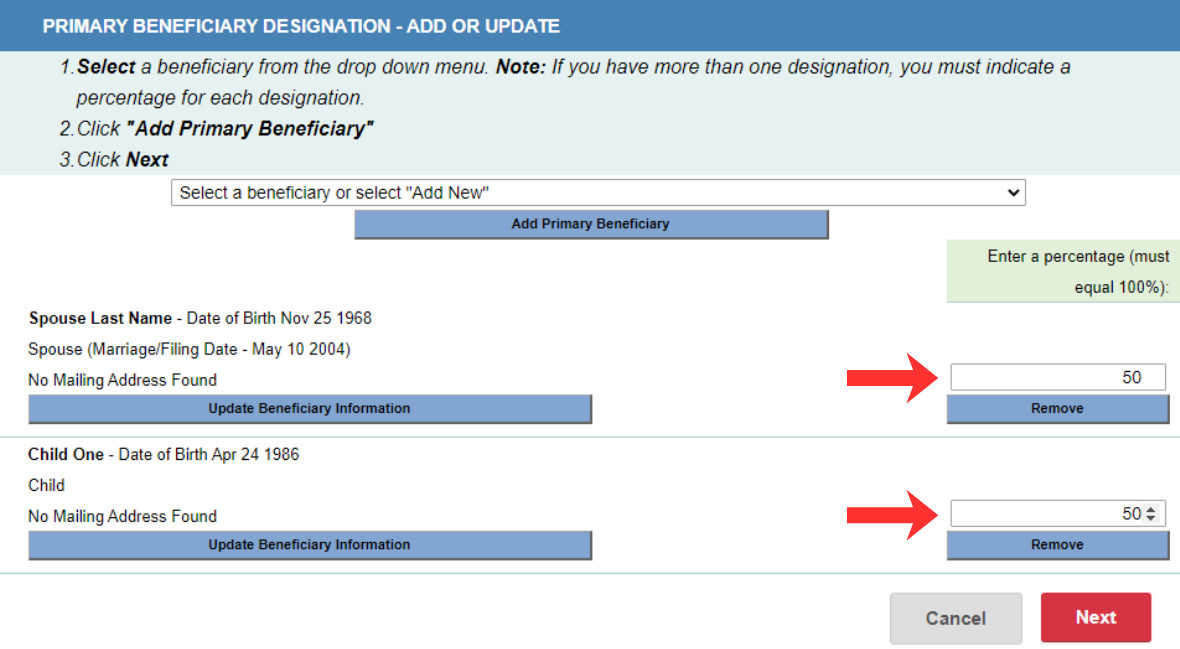
To add EXISTING beneficiaries:
- A. Select an existing beneficiary from the drop down box.
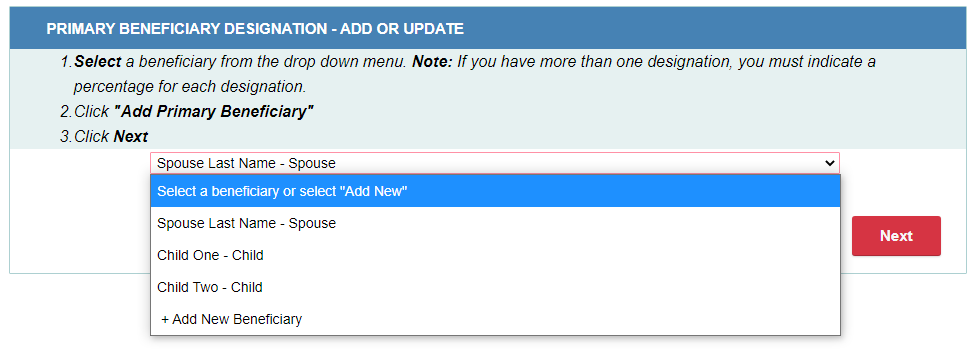
- B. Click “Add Primary Beneficiary”
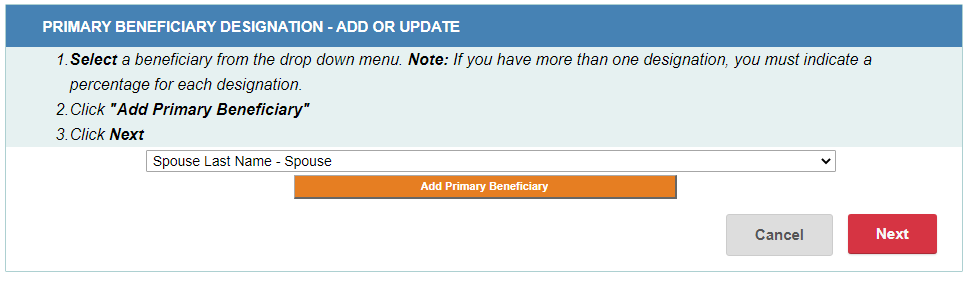
- C. If you would like to add more than one PRIMARY designation, repeat steps A and B or to add a “NEW” person/entity follow steps A-E for adding NEW beneficiary above.
- D. Enter the percentage (in whole numbers) you would like to designate. Click Next.
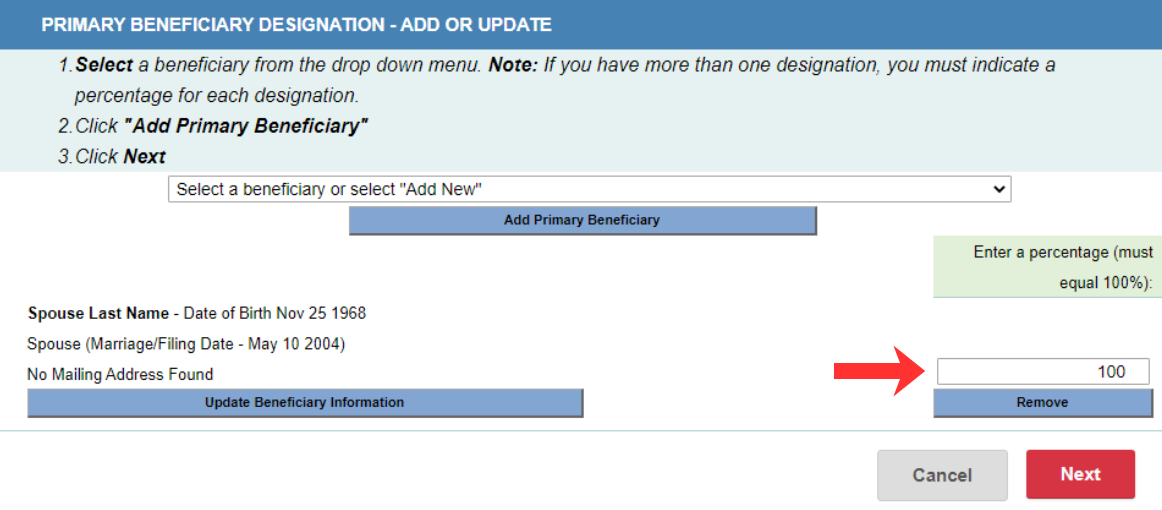
Add or Update Your “Secondary” Designation
To add designations, follow instructions provided in Step 5. Click Next.
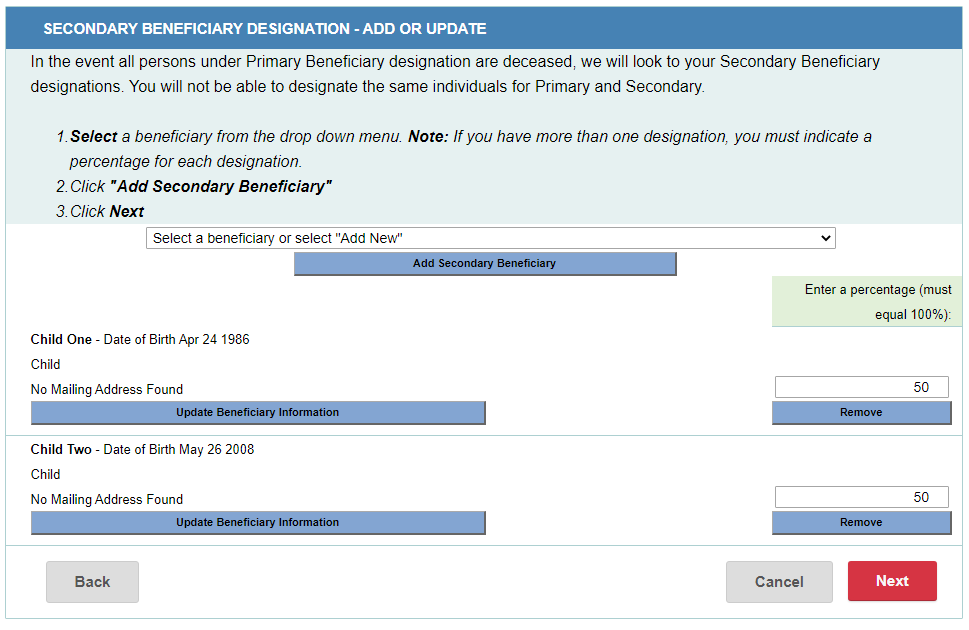
NOTE: In the event that all persons under Primary Beneficiary designation are deceased, we will look to your Secondary Beneficiary designations. You will not be able to designate the same individuals for Primary and Secondary.
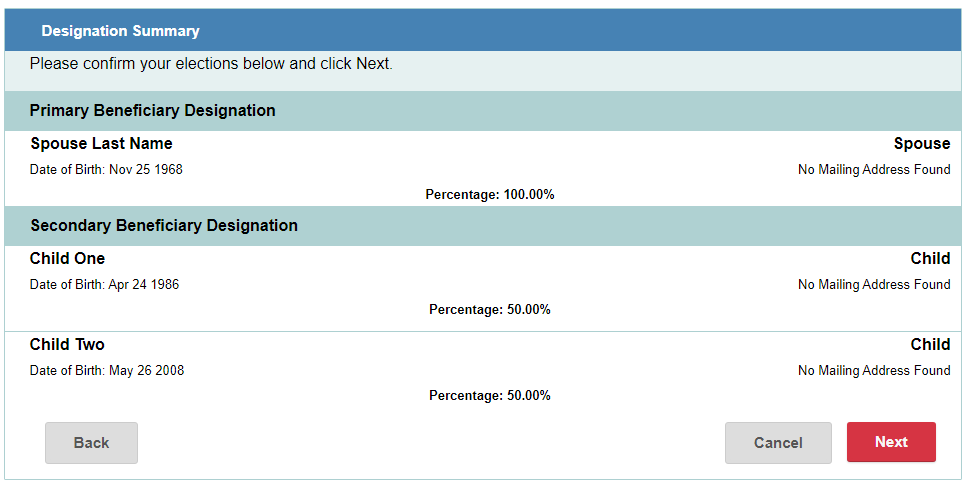
Confirm Your Elections
The summary screen shows you the latest changes you made. Click “Back” to change your elections, otherwise, click “Next”.
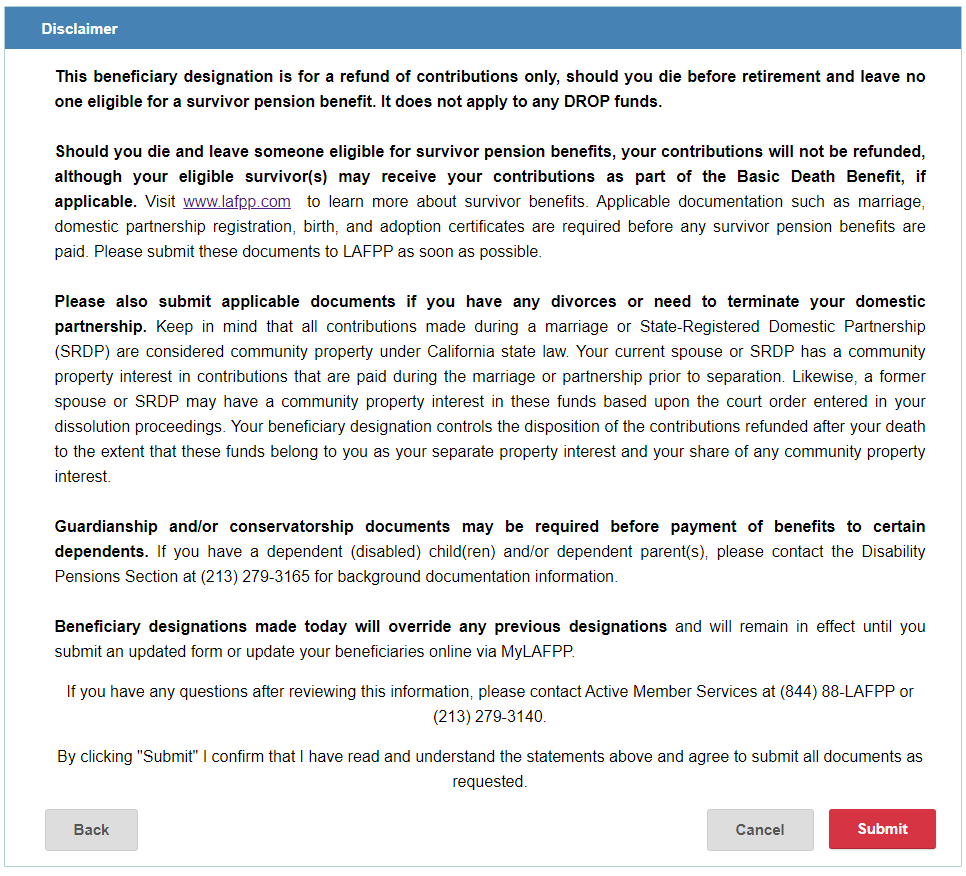
Read Disclaimer and Click Submit to Process Your Designations
A confirmation screen will open to let you know your elections have been submitted. Click on “Beneficiaries” Menu to return and view a summary of your designations. You may print a copy for your records or update your elections at any time.
Contact Us
If you require further assistance please contact the Communications & Education Section at (213) 279-3155 or (844) 885-2377, Monday-Friday from 7:30 a.m. to 4:30 p.m. (PDT), excluding weekends and City Holidays.